Showing posts with label IIS. Show all posts

Thursday, January 17, 2008

SelfSSL Connection Errors

The IIS Resource Kit's SelfSSL tool is a quick and sneaky way to get both IIS and ADAM running SSL for quick OAM sandbox environments. I've encountered ADAM connection errors if a self signing SSL had previously been generated on the same VM/server. Here's how you get a newly self signed SSL to work on the same machine:
  1. Move all the old certs into an archive directory located here: C:\Documents and Settings\All Users\Application Data\Microsoft\Crypto\RSA\MachineKeys
  2. When you run the selfssl.exe command to install the self-signed SSL certificate into IIS, you must include the fully qualified machine name in the /N:cn parameter. For example: selfssl.exe /T /V:3650 /N:cn=oam.company.com
Verify that the new cert has been generated and that your ADAM run as user has read permissions on the cert and that should solve the problem.
Test your connection using LDP.exe, also using the fully qualified host name.
This is an excellent link with step-by-step instructions, (including the download location for the IIS 6.0 Resource kit from MS): http://geekswithblogs.net/jimiz/archive/2007/02/11/106006.aspx

Monday, January 29, 2007

IIS6 and Tomcat

This is a little bit off topic as OAM goes but everytime I want a quick OAM / Servlet container working environment, it takes me too long to discover this info. So, here it is in a nutshell:

The quickest, cheapest, most readily available solution to getting OAM up and running with a servlet container as the server side technology is to use IIS6 on Win2K3 and Tomcat 5.5. The crux is that you want to be able to stick a webgate in front of the container resources (by default, on port 8080). Now, there is a ton of info on the web about how to do this. But the one resource that you need is here:

http://wiki.apache.org/tomcat/Tomcat_and_IIS_Howto

There is an MSI package that will do most of the picky IIS and registry config for you (link near the top of the page)

http://www.apache.org/dist/tomcat/tomcat-connectors/jk/binaries/win32/jk-1.2.15/isapi_redirect.msi

The setup program is a great help but there is one final detail (mentioned thanks to someone who added a note to the page) that reads:

The setup file included here and the script to add the ISAPI filter work just fine in IIS6, but there is one additional step needed. You must also allow access to the filter through the Web Service Extensions part of IIS. To do this graphically, do the following:
1) open the IIS Manager and go to the Web Service Extensions item under the appropriate server 2) Click the "Add a new Web service extension" item under "Tasks" 3) Give it a name like "jakarta" 4) Browse to the isapi_redirect.dll file you installed above as a "Required File" 5) Check the box to enable this extension.
This detail is there in the docs as point #8 on the IIS How-To but it is easy to miss.

The only other note I have is that all the documentation talks about the workers.properties file. Be aware that the setup program referenced here creates a file called workers.properties-minimal. This is ok as it also writes the same filename value into the registry. Just good to be aware that both the registry key and the filename need to jive before you go renaming it.

Wednesday, May 10, 2006

WebGate and the IE / CSS Flicker Bug

Gettng quite specific here - but if you have this problem, you'll appreciate the info...
There is an annoying behavior that can occur in Internet Explorer. It is referred to as the 'IE CSS Flicker Bug'. This bug manifests as repeated requests being issued for the exact same resource (like a gif image). The result is a very slow or, sometimes, unusably slow user interface as the browser bogs down under (sometimes hundreds) of identical requests. For whatever reason, the IE fails to inspect its own cache for image resources that are defined in a CSS declaration and always issues a new request for each instance of the same resource.
Of course, there is a resolution to the issue. This involves tuning some specific settings on the webserver that serves image files.
IIS Webserver Configuration to Correct IE Flicker
The trick is to specifically set some content expiration and cache control headers that trigger IE to look into its own cache before issuing a new request.
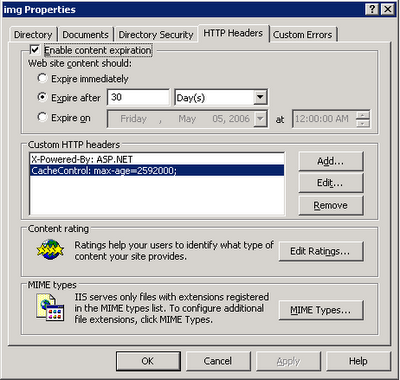
On the directory that contains the resources in question configure: (the following is IIS specific but you can extend the same concept to Apache, etc.)
  • Enable Content Expiration
  • Expire after 30 days
  • Cache-Control: max-age=2592000;
! note: there is a typo in the screen shot where the dash character is missing from CacheControl. Should read Cache-Control.

Where the WebGate Fits In

That's all the info you can find about this issue on the web. But if the UI in question is protected by a WebGate, you might apply the above mentioned measures only to find no improvement in the browser behavior. By default, the COREid WebGate is configured to apply two HTTP headers to each response it handles. Out of the box, the value for both CachePragmaHeader and CacheControlHeader is no-cache. Because the WebGate is always the last component to apply headers, it effectively overrides the headers supplied by the web server.
In the WebGateStatic.lst file, change both the CachePragmaHeader and CacheControlHeader to 'public'. (Yes, this may have other consequences so test carefully.)
That should be all that is needed to end any issues with the IE CSS Flicker bug if it, one day, plagues you.